How to Create a Custom Twitch "Be Right Back" Scene in Minutes
Every streamer needs a BRB screen — but most look the same. Generic text, plain background, zero personality.
Your "Be Right Back" scene is part of your brand. It's what viewers see when you step away. Why not make it look as good as the rest of your stream?
In this guide, we'll show you how to create a custom Twitch BRB scene using Zukaa AI's Text Tools and AI Photo Edit — in about 2 minutes.
Why Your BRB Screen Matters
A well-designed BRB scene:
Keeps viewers engaged while you're away
Reinforces your brand with consistent visuals
Shows professionalism and attention to detail
Reduces viewer drop-off during breaks
Yet most streamers skip this because designing one feels like too much work. Not anymore.
Tools You'll Use
Text Tools
Zukaa AI's Text Tools give you access to pre-made text templates that look professional out of the box. Pick a style, change the text, done — no design skills needed.
AI Photo Edit (Powered by Nano Banana Pro)
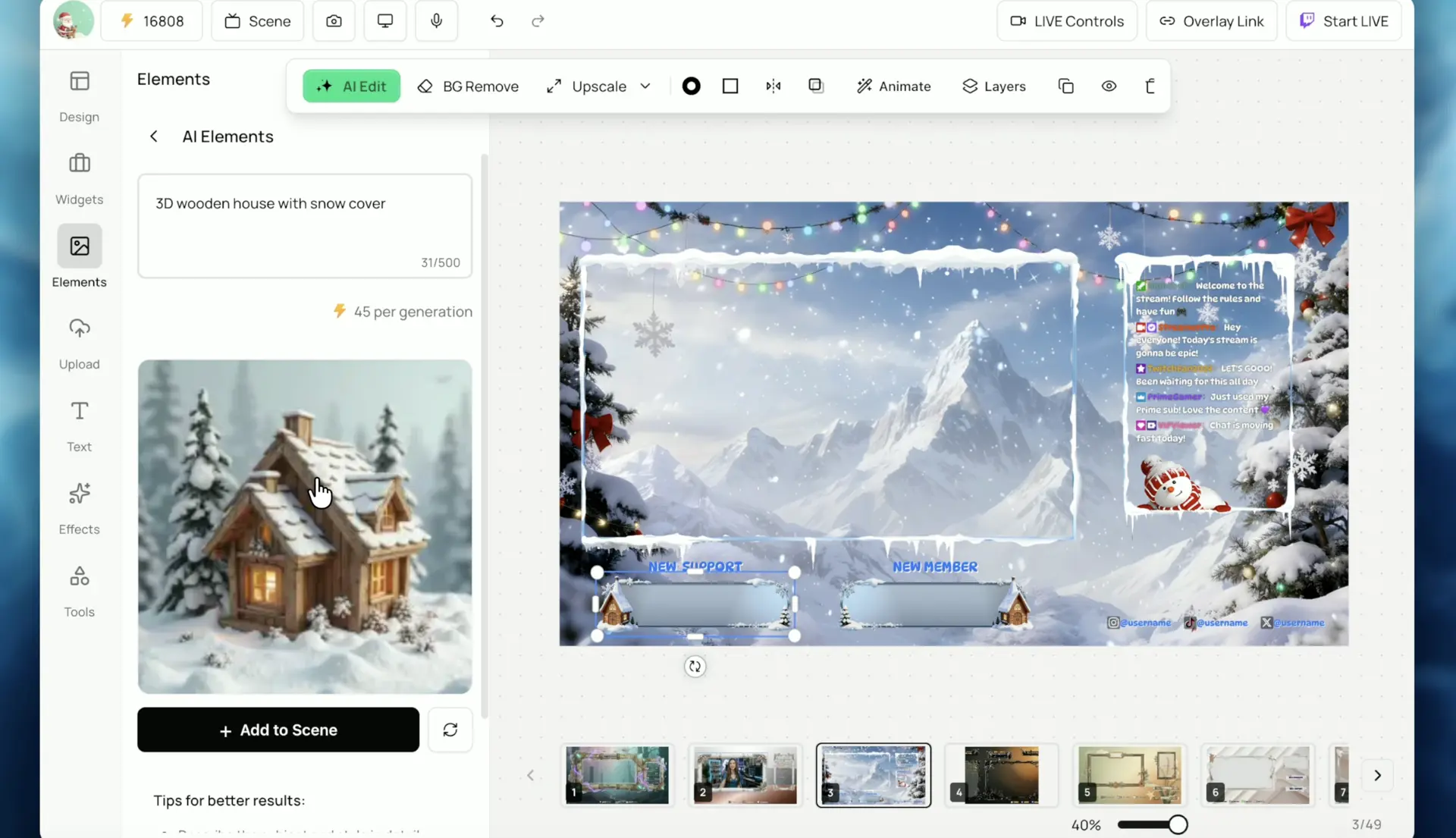
Want to add something extra to your background? AI Photo Edit lets you edit or enhance any image with AI. Describe what you want to add or change, and the AI handles the rest.
How to Create a Custom BRB Scene (Step-by-Step)
Step 1: Choose a Background Image
Head to Zukaa AI and start a new project. Pick a background image that fits your stream's vibe — cozy, futuristic, minimal, whatever matches your brand.
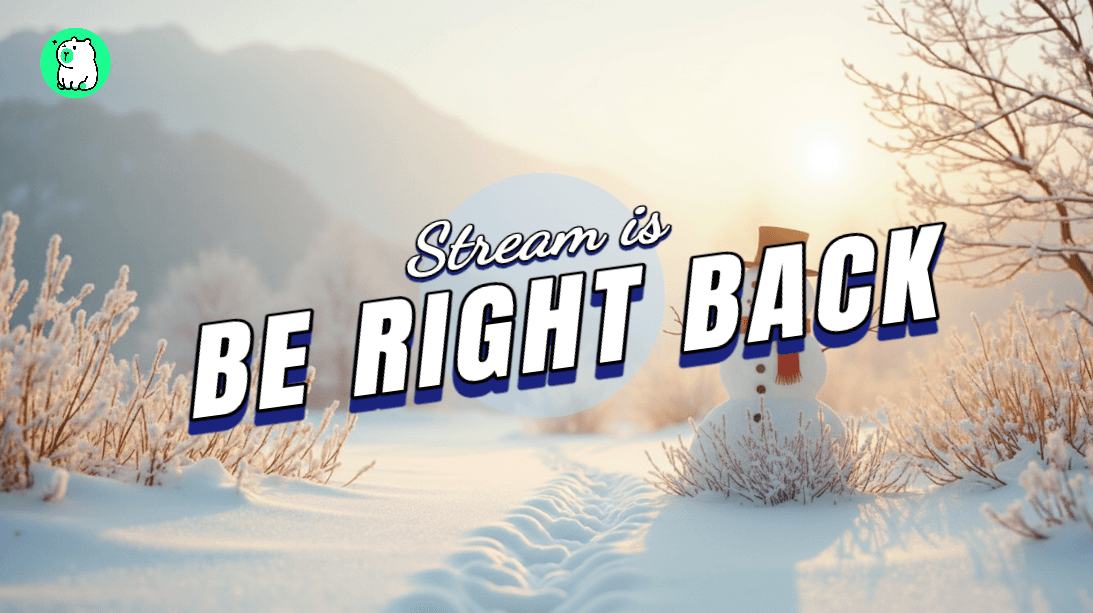
For this example, we used a snowy winter scene.
Step 2: Add a Text Template
Open Text Tools and browse the text templates. Pick one that matches your style — there are options for clean, bold, animated, and more.
Step 3: Customize the Text
Change the template text to "Be Right Back" (or "BRB", "Back Soon", whatever you prefer). Adjust the size and position if needed.
Step 4: Enhance with AI Photo Edit
Want to add some extra flair? Open AI Photo Edit and describe what you want to add.
For our winter scene, we added a snowman to make it feel more cozy and festive. The AI generated it and blended it into the image seamlessly.
Step 5: Copy the Overlay Link to OBS
Click to copy your Overlay Link, then paste it into OBS as a browser source. That's it — your custom BRB scene is live.
BRB Scene Ideas to Try
Need inspiration? Here are some themes you can create with Zukaa AI:
Cozy winter — snow scene + warm text + snowman or cabin
Lo-fi chill — animated background + minimal text
Retro gaming — pixel art style + arcade font
Nature escape — forest or beach + calm vibes
Neon cyberpunk — dark background + glowing text
With AI Photo Edit, you can customize any background to match your vision.
Why Streamers Use Zukaa AI for BRB Scenes
Feature | Zukaa AI | Traditional Design Tools |
|---|---|---|
Pre-made text templates | ✅ | ❌ |
AI image editing | ✅ | ❌ |
One-click OBS link | ✅ | ❌ |
Browser-based (no download) | ✅ | ❌ |
Free to use | ✅ | Varies |
Make Your BRB Screen Yours
Your stream deserves a BRB scene that reflects your style — not a generic placeholder. With Zukaa AI, you can create one in minutes without touching Photoshop or hiring a designer.
Happy streaming! 🎮